Jev Ultrafast MCP: an autonomous browser for Claude Code
🇫🇷FRJev Ultrafast MCP replaces 20 browser calls with a single browser_goal. 10x fewer tokens, 10x cheaper than Claude in Chrome. Full setup with benchmarks.
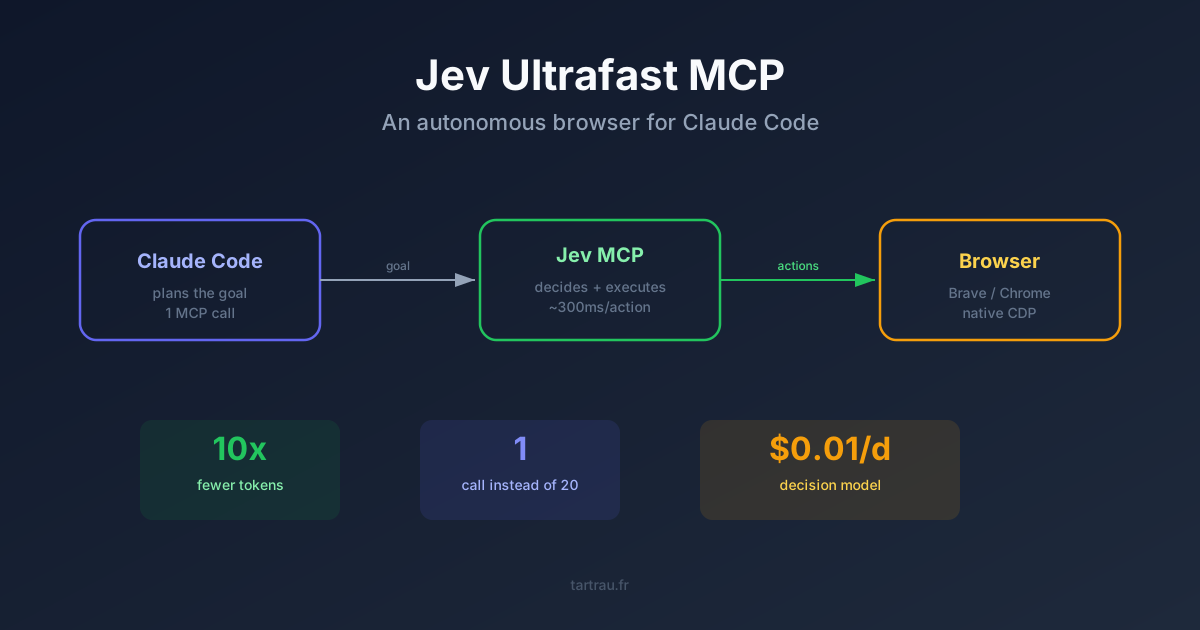
I use Claude Code with two browser MCP servers: Claude in Chrome and Jev Ultrafast MCP. Both let Claude control a browser, but the approach is radically different. Claude in Chrome sends each click and keystroke as a separate tool call, each injecting tokens into context. Jev does the opposite: Claude sends a natural-language goal, Jev drives the browser server-side, and Claude only receives the result.
Measured gain on a real task: 10x fewer Claude tokens and 10-40x lower cost.
The problem with click-by-click control
When Claude Code uses Claude in Chrome or a standard computer use tool, each browser interaction follows the same pattern:
- Claude reads the page (screenshot or DOM) - token injection
- Claude decides what to click - token generation
- The tool executes the click
- Claude re-reads the page to verify - token injection
- Repeat for each action
A flight search on Google Flights takes about 15 to 20 round trips. Each round trip injects the page content into Claude’s context. On Opus, that easily adds up to 100,000 to 150,000 tokens for a task that takes 45 seconds.
Context fills up fast. In a session with multiple browser tasks, you hit compaction well before the actual work is done.
How Jev changes the approach
Jev Ultrafast MCP inverts the decision loop. Instead of Claude deciding each click, Claude sends a single goal via browser_goal:
browser_goal(
  goal="Search for a flight from Paris CDG to Barcelona, one way, October 15",
  url="https://www.google.com/travel/flights",
  verify=["flight results displayed", "prices visible"]
)
The MCP server takes over. Jev uses a specialized decision model (TypeSafe System One) that picks each action — click, text input, scroll — in about 300 milliseconds. A micro-LLM (inception/mercury-2.5) generates text only when typing is needed. The page never enters Claude’s context.
Claude receives a structured result: the task is complete, verification criteria passed, here’s the extracted data. One tool call, a few thousand tokens.
Benchmarks
I measured the difference on a concrete task: flight search on Google Flights (Paris CDG to Barcelona, one way).
| Metric | Jev (turbo) | Jev (manual fallback) | Claude in Chrome |
|---|---|---|---|
| MCP calls | 1 | ~20 | ~15-20 |
| Claude tokens | ~5,000 | ~45,000 | ~100-150,000 |
| Context consumed | 4% | 8% | ~15-25% |
| Time | 42s | 1m40 | ~45s |
When browser_goal succeeds in turbo mode (the common case), the gain is massive: 10x fewer tokens, 10-40x lower cost. When it fails (blocking modal, captcha), Claude falls back to manual control via browser_act and browser_observe. The gain drops to 2-3x, but still well below Claude in Chrome.
Jev’s own benchmarks on 3 form tasks confirm the cost gap:
| Model | Total cost | Time | Ratio |
|---|---|---|---|
| Jev | $0.006 | 17.8s | 1x |
| Claude Sonnet 5 | $0.25 | 43.3s | 44x |
| Claude Opus 5 | $0.80 | 45.4s | 140x |
Jev’s decision model costs about $0.01 per day in typical usage. Macro mode lets you replay completed tasks with zero model calls.
Installation and setup
Prerequisites
- Python 3.10 or above
- An API key for the Jev decision model: OpenRouter, TypeSafe AI, or any compatible provider
- A Chromium-based browser: Chrome, Brave, Edge, Chromium, Arc, or any Chromium derivative
Clone and install
git clone https://github.com/jiawei686/jev-ultrafast-mcp.git
cd jev-ultrafast-mcp
python3 -m venv .venv
.venv/bin/pip install -e .
Add the MCP to Claude Code
claude mcp add --scope user jev-ultrafast-mcp \
  -- /absolute/path/.venv/bin/python -m jev_ultrafast_mcp
The MCP server reads environment variables from os.environ, not from a .env file. Declare them in the env block of the MCP server in ~/.claude.json:
{
  "mcpServers": {
    "jev-ultrafast-mcp": {
      "type": "stdio",
      "command": "/path/.venv/bin/python",
      "args": ["-m", "jev_ultrafast_mcp"],
      "env": {
        "TYPESAFE_API_KEY": "<api-key>",
        "TYPESAFE_BASE_URL": "https://openrouter.ai/api/alpha/decisions",
        "TYPESAFE_MODEL": "jev-latest",
        "TEXT_MODEL_API_KEY": "<api-key>",
        "TEXT_MODEL_BASE_URL": "https://openrouter.ai/api/v1",
        "TEXT_MODEL": "inception/mercury-2.5",
        "JEVMCP_CHROME": "/Applications/Brave Browser.app/Contents/MacOS/Brave Browser",
        "JEVMCP_MODE": "attach",
        "JEVMCP_CDP_URL": "http://127.0.0.1:9224",
        "JEVMCP_HEADLESS": "0",
        "JEVMCP_ALLOW_JS": "1"
      }
    }
  }
}
Understanding JEVMCP_CHROME and JEVMCP_CDP_URL
JEVMCP_CHROME points to the Chromium browser executable that Jev will use. This choice has two direct consequences:
- Which browser is controlled: Jev uses the CDP (Chrome DevTools Protocol) to send actions. Any Chromium-based browser supports CDP: Chrome, Brave, Edge, Arc, Chromium.
- The user profile: in
attachmode, Jev connects to the already-running browser with the user’s profile. Cookies, logged-in sessions, extensions are all available. Jev can interact with sites where the user is already authenticated without managing credentials.
Example paths by browser on macOS:
# Brave
JEVMCP_CHROME="/Applications/Brave Browser.app/Contents/MacOS/Brave Browser"

# Chrome
JEVMCP_CHROME="/Applications/Google Chrome.app/Contents/MacOS/Google Chrome"

# Edge
JEVMCP_CHROME="/Applications/Microsoft Edge.app/Contents/MacOS/Microsoft Edge"

# Chromium
JEVMCP_CHROME="/Applications/Chromium.app/Contents/MacOS/Chromium"
JEVMCP_CDP_URL tells Jev where to connect to the browser’s remote debugging port. Chrome’s default port is 9222, but if Chrome and Brave run on the same machine, they cannot share the same port. I use 9224 for Brave to avoid the conflict:
# Brave on port 9224 (avoids conflict with Chrome 9222)
open -a "Brave Browser" --args --remote-debugging-port=9224

# JEVMCP_CDP_URL must match the chosen port
JEVMCP_CDP_URL="http://127.0.0.1:9224"
If the port does not match, Jev cannot find the browser and falls back to launch mode (which fails if the browser is already running).
Launch the browser with remote debugging
For Jev to connect to an existing browser (attach mode), the browser needs to start with the debugging port:
open -a "Brave Browser" --args --remote-debugging-port=9224The existing profile is preserved: cookies, sessions, extensions all remain available.
To make it permanent, add to ~/.zshrc:
alias brave='open -a "Brave Browser" --args --remote-debugging-port=9224'Key variables
| Variable | Value | Role |
|---|---|---|
JEVMCP_CHROME | Binary path | Chromium browser executable to use (Brave, Chrome, Edge…) |
JEVMCP_CDP_URL | http://127.0.0.1:9224 | Remote debugging port, must match --remote-debugging-port |
JEVMCP_MODE | attach | Connect to the existing browser with the user profile |
JEVMCP_HEADLESS | 0 | Visible browser (watch actions in real-time) |
JEVMCP_ALLOW_JS | 1 | Let Jev run JS (close cookie modals) |
TYPESAFE_BASE_URL | .../api/alpha/decisions | Decisions endpoint (not /api/v1) |
Pitfalls to avoid
Locked profile. If the browser is already running, launch mode fails because of the SingletonLock. Use attach mode with --remote-debugging-port.
ALLOW_JS set to 0. Without JavaScript, Jev cannot close cookie banners. The browser_goal fails and Claude falls back to manual control, consuming significantly more tokens.
Variables in a .env file. The MCP server does not read .env files. Variables must go in the env block of ~/.claude.json, otherwise the server starts without configuration.
Wrong endpoint for the decision model. For the Jev model, use https://openrouter.ai/api/alpha/decisions (the decisions endpoint), not /api/v1 (the standard chat endpoint). With TypeSafe AI directly, the URL differs — check their documentation.
Mismatched CDP port. If JEVMCP_CDP_URL points to a different port than the browser’s --remote-debugging-port, Jev cannot find it and attempts a launch that fails.
Exposed tools
Jev exposes 10 tools to Claude, but in practice two cover most tasks:
| Tool | Usage |
|---|---|
browser_goal | Delegate a complete task in one call (turbo mode) |
browser_open | Open a URL and get the element table |
browser_act | Execute a batch of actions (fallback when turbo fails) |
browser_observe | Re-read the page (delta only, not the full DOM) |
browser_assert | Verify state by code, not by LLM opinion |
browser_macro | Replay a recorded flow with zero model cost |
The browser_macro mode is underrated. Once a task succeeds, Jev records the flow. The next execution of the same flow costs zero tokens, zero API calls. For repetitive tasks (checking a deployment, monitoring a dashboard), it is free.
When to use Jev, when to keep Claude in Chrome
Jev excels for well-defined web tasks: filling a form, searching for a flight, scraping structured data, submitting a report. Anything that boils down to “go to this page and do that”.
Claude in Chrome remains necessary for open exploration (“look at this page and tell me what you think”), frontend debugging (console, network requests), and visual content analysis. Jev does not do visual analysis — it refuses captchas and cannot interpret a screenshot.
In practice, I use both. Jev for automatable tasks, Claude in Chrome for debugging and exploration. The choice is natural: if I can write the goal in one sentence, it goes to Jev. If I need to look and understand, it goes to Claude in Chrome.
The MCP server is available on GitHub. It integrates with Claude Code, Claude Desktop, Cursor, VS Code, Codex CLI and other MCP-compatible agents. To also optimize tokens from your other MCP servers, see MCP RTK. And for the full Claude Code setup including Jev: my Claude Code setup in 2026.